


 Nederlands
• Where are your servers located?
• What are the configurations of your servers?
• Is PHP and MySQL supported on your servers?
• Do you have a Chamber of Commerce and VAT number?
FAQ

General

Domains

Web Hosting
• Where can I log in to the control panel?
• How can I upload my files?
• Can I view my site before the domain is properly configured?
• How do I perform actions in the control panel?
• What happens if I have used all my data traffic?
• How do I set up my email?
• How do I use DNSSEC?
• How do I use DKIM?
• How do I use SPF?
• How do I use DMARC?

Our servers are located in Enschede, Hengelo, Doetinchem & and Amsterdam (Netherlands).
More information can be found on the datacenter page.
We have hundreds of servers, some of which are used for shared web hosting and reseller hosting. Each server has at least 8 cores and 32GB RAM. Storage is provided on SSD disks. More information can be found on the following page: Server specifications.
Yes, PHP and MySQL are supported on our servers.
In the DirectAdmin control panel, you can choose which PHP version you want to use.
Chamber of Commerce number: 87733765
VAT number: NL864388615B01
Go to your current domain provider and request the transfer key or transfer code for the domain (also called an EPP code or token). Enter this code during the transfer request in our system. The domain will be transferred within 24 hours, and it may take up to 5 business days before the transfer is fully completed.
See also the section about special considerations for transfers for more information.
All domains
You need a transfer code to transfer the domain. You can request this from your current domain provider. This code is sometimes also called an EPP code, token, or transfer key.
COM / NET / ORG / INFO / US / BIZ
The registrar lock must be removed from the domain (if present) before the domain can be transferred. Your current domain provider can do this for you.
NL
If the transfer is refused, the transfer can still be initiated using the following form: TransferForm.pdf.
NU
The following form must be completed and signed.
No, it is not possible to change a registered domain name afterwards. You will need to register a new domain name.
Yes, you can change the nameservers of your domain free of charge through our control panel.
You can change the owner details of a domain through our control panel or by contacting our support department.
There are also a few exceptions:
- .be: The old owner must confirm the change by email.
.de: A German administrative contact person is required.- .eu: The following form must be signed or the old owner must confirm by email.
- .nu: The following form must be signed.
In some cases, certain extensions may charge fees for the change:
- .be: registration cost for 1 year.
- .eu: registration cost for 1 year.
- .nu: registration cost for 1 year.
You can log in to the control panel through the client area or directly via the provided DirectAdmin login URL.
You can upload your files using FTP, SFTP, or the file manager in the DirectAdmin control panel.
Yes, you can usually preview your website using a temporary URL or by modifying your hosts file before the domain points correctly.
After logging in to the DirectAdmin control panel, you can manage domains, email accounts, databases, DNS settings, and other hosting features through the available menus.
If you exceed your data traffic limit, your website may become temporarily unavailable or additional charges may apply depending on your hosting package.
How do I configure my email?
You can access your email through webmail or your preferred email application.
Webmail
Webmail is available at yourdomain.com/webmail or yourdomain.com/roundcube. You can also use webmail to verify that your email address and password are working correctly.
Email application
You can configure your email account using either IMAP or POP3. With IMAP, your emails remain stored on our server, allowing you to access your mailbox from multiple computers, devices, and webmail. This is especially useful if several colleagues share the same mailbox. With POP3, emails are downloaded and stored on your local computer. If your computer breaks down and you do not have a backup, you may lose your emails. We recommend using IMAP.
Before configuring your email application, you need to determine which of our servers hosts your email account. This is often server97.icehosting.nl, but your account may be hosted on a server with a different number. The example below uses server97. If your account is hosted on another server, simply replace the server number with the correct one.
Login credentials:
Your email address
Password
Incoming mail server
server97.icehosting.nl
IMAP port with SSL/TLS: 993
IMAP port without SSL/TLS: 143
POP3 port with SSL/TLS: 995
POP3 port without SSL/TLS: 110
Outgoing mail server (SMTP)
server97.icehosting.nl
Port: 587 (STARTTLS)
Port with SSL/TLS: 465
Authentication is required for outgoing email. Use the same login credentials as your email account.
We strongly recommend using SSL/TLS whenever possible. This establishes a secure, encrypted connection between your email application and the server, helping prevent unauthorized access to your email traffic. Make sure your email application supports SSL/TLS.
To configure Microsoft Outlook, you can use the following guide:
How do I configure DNSSEC?
DNSSEC adds an extra layer of security to your domain's DNS zone. It helps prevent attackers from manipulating DNS responses and redirecting visitors to malicious servers. This protects against certain types of man-in-the-middle attacks. DNSSEC provides authentication and integrity for DNS information, but unlike SSL/TLS, it does not encrypt communication between your website and its visitors. Therefore, it is always recommended to use an SSL certificate alongside DNSSEC.
Step-by-step instructions:
- Log in to DirectAdmin and select "DNS Management".
- Scroll down until you see "DNSSEC - DNS Security".
- Click "Generate Keys".
- You should now see several new fields, including "Zone-signing key", "DNSKEY", "Key-signing key", etc.
- Locate the key under "Key-signing key". The entry starts with DNSKEY 257 3 13 <key>. Copy the key value that appears after 13.
- Log in to the IceHosting portal and select "Domains". Choose the relevant domain from the domain list.
- At the bottom of the page, under "DNSSEC", select 257 as the type and 13 as the algorithm. Paste the copied key into the corresponding field and click "Add".
- After adding the key, a Key ID will appear. This Key ID should match the Key ID displayed in DirectAdmin.
- Return to DirectAdmin and click "Sign". DNSSEC should become active within a few minutes, although DNS propagation may take longer.
- You can verify whether DNSSEC is working correctly using internet.nl or dnsviz.net.
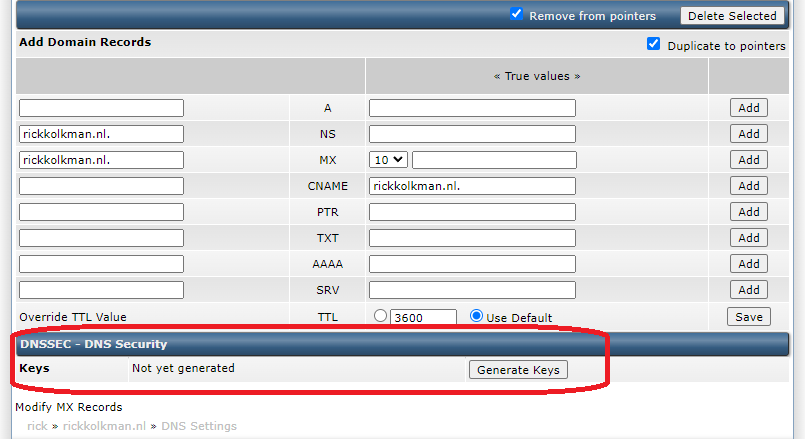
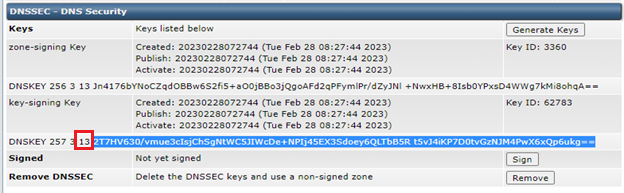
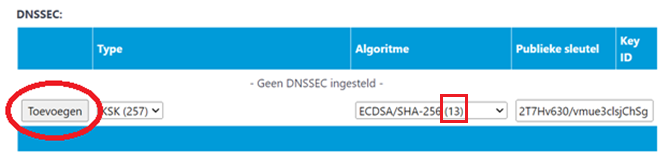
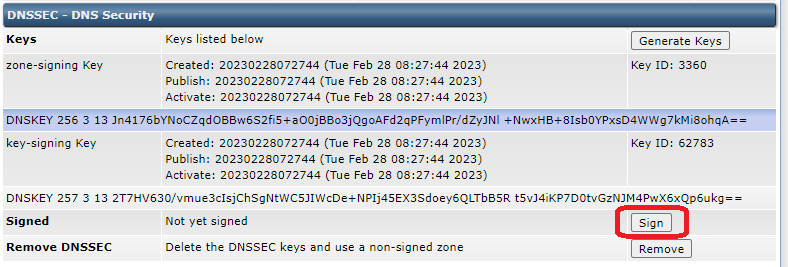
Important: Incorrect DNSSEC configuration can cause DNS resolution to fail, making your website and other domain services inaccessible. Make sure to complete all the steps correctly. If you encounter problems, you can disable DNSSEC by removing the DNSSEC keys from the relevant domain in the IceHosting portal and selecting the "Remove" option in DirectAdmin.
How do I configure DKIM?
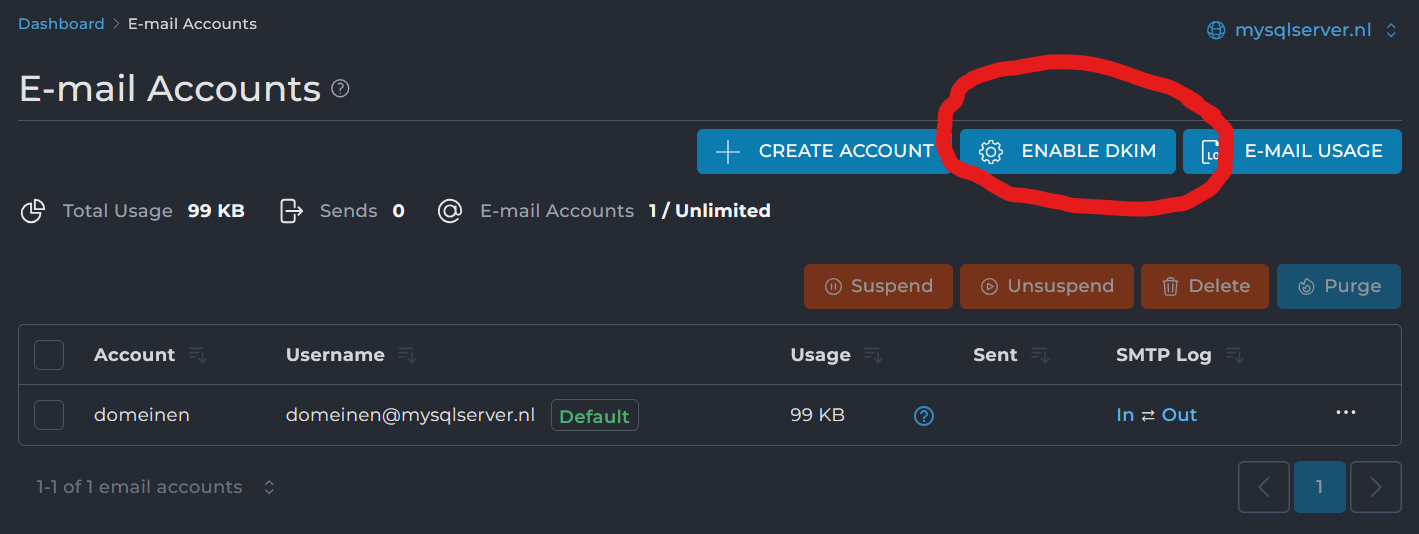
DKIM allows you to digitally sign every email you send. The recipient can verify whether the email genuinely originated from your domain by checking the public key published in your domain's DNS zone. This helps the recipient confirm that the message is authentic. Enabling DKIM is also recommended to prevent email providers such as Hotmail and Gmail from treating your messages as spam. In DirectAdmin, enabling DKIM takes just one click. Are you using a different email provider? You can ask your provider to enable DKIM. They will provide you with a TXT record that you need to add to your DNS zone in DirectAdmin.
To enable DKIM in DirectAdmin: Select "Email Accounts" and click "Enable DKIM" in the top-right corner.
How do I configure SPF?
SPF is used to specify which email servers are authorized to send emails on behalf of your domain. You do this by listing IP addresses and include mechanisms in your SPF record. The default SPF record created by DirectAdmin is usually sufficient, unless you use additional email services that are allowed to send messages on behalf of your domain. For example, you might use accounting software or host your email with Office 365. In the latter case, you need to add the appropriate include mechanism provided by that service. Request the necessary SPF information from your provider and add it to your SPF record.
By default, SPF is configured with SoftFail. To enforce SPF more strictly, you should change this to Fail. However, make sure that all authorized sending servers and IP addresses are included in your SPF record before making this change.
You can modify this in DirectAdmin under "DNS Management". Click the TXT record associated with your domain and replace the ~ (tilde) with a - (minus sign).
Example SPF record for a domain using Office 365:
- domein.nl.
- TXT
- "v=spf1 a mx ip4:195.22.100.5 include:spf.protection.outlook.com -all"
If you do not use Office 365, simply omit the italicized part.
How do I configure DMARC?
DMARC tells receiving email providers how to handle messages that appear to originate from your domain. The recipient checks an email against SPF and DKIM, and depending on whether these checks pass or fail, DMARC determines how the message should be handled. DMARC offers three policy options:
- none (Emails are not blocked or quarantined based on the DMARC policy, and you can receive reports about authentication results.)
- quarantine (Emails that fail DMARC authentication are typically moved to the recipient's spam folder.)
- reject (Emails that fail DMARC authentication are rejected by the receiving email server.)
Before configuring DMARC, you should ensure that SPF and DKIM are properly set up. Once you are confident that everything is configured correctly, you can use p=reject. This helps prevent others from impersonating your domain and improves your email authentication. However, if you have not yet included a service such as your accounting software in your SPF record, it is advisable to start with p=none or p=quarantine. This allows you to monitor authentication reports and identify potential issues before enforcing a strict rejection policy. You can then update your SPF configuration to include any legitimate sending services before their emails are rejected.
To create your DMARC record, go to "DNS Management" in DirectAdmin, create a new TXT record, and enter the following:
- _DMARC
- TXT
- "v=DMARC1; p=reject; sp=reject; rua=mailto:info@domein.nl"
Make sure to replace the email address with the address where you want to receive DMARC reports. Although the rua parameter is optional according to the DMARC specification, some providers or validation tools may expect it to be present. Including a valid reporting address is recommended if you want to monitor DMARC authentication results.
Yes, overselling is allowed on reseller accounts unless stated otherwise in your package specifications.
There is no limit on domains or accounts in our reseller packages. The only limit is the disk space.
Your Question?
Is your question still unanswered? Please contact us.